


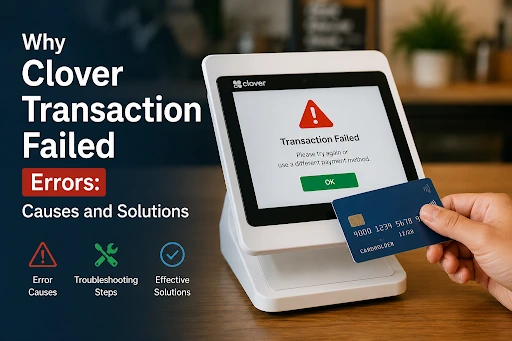
Clover Transaction Failed Errors: Causes and Solutions
Your Clover machine declines a card? Could it be the card itself? Or maybe the network? Perhaps the device? What about your account? Picking the wrong culprit means trouble for at least five minutes, missing the window before the customer skips out.
Here is exactly what each error means and how to fix it fast.
Get Started With Us
Fill in your details and we'll get back to you shortly.
Quick Answer: Why Do Clover Transactions Fail?
The most common reasons for transaction failure from the Clover payment device are card reading issues, network problems, payment authorization failure, or incorrect terminal settings. The good news is that most of the problems will be resolved in just a minute without even getting technical support.
1. Card Reading Errors: Chip, Magnetic Stripe, and Contactless
The reason most frequently payment fails occurs due to a physical card reading problem. This can affect the way chip cards, magnetic stripe, or tap to pay transactions are handled on your Cloverer POS machine.
Chip Card Reading Error
When a customer inserts a chip card and the terminal returns an unreadable message, the chip card reading error mostly happens due to the following:
- The chip contacts are dirty, or the card is damaged
- The card was removed too quickly during processing
- The chip reader slot on the Clover POS machine has debris or wear
Solution: Request the customer to insert the card again slowly and leave it until the terminal prompts are removed. Clean the chip slot with air and try the card again. If it still doesn't work, swipe the card using the magnetic stripe as a fallback.
Magnetic Stripe Not Working
Magnetic stripe not working happens when the card is swiped again and again without success. The stripe can be demagnetized, scratched, or the card reader needs cleaning.
Solution: Swipe the card smoothly in one motion, then manually key in the card details. If you want to decrease the probability of failures occurring so regularly, clean the swipe reader with a cleaning card.
Contactless Payment Failed
Tap to pay failure increases day by day and has become common; a constant payment failed message on your device mostly means one of the following:
- NFC is disabled in the terminal settings
- The customer is holding the card or phone too far from the reader
- A case or sleeve is blocking the card's NFC chip
- The contactless limit has been exceeded for that card
Solution: Make sure NFC is active in your POS system. Ask the customer to hold their card against the reader for a few seconds. If that fails, then switch to chip or swipe.
2. Payment Authorization Failure: What It Means
A payment authorization happens when the customer's bank rejects the transaction request before the movement of funds. It's completely different from the card reader problem and happens at the network level.
Common Causes of Authorization Failures
- Insufficient funds error — the customer's account balance is too low
- The card has reached its daily spending limit
- The bank flagged the transaction as suspicious
- The card has expired or is reported lost
- The billing address entered does not match the bank records
The insufficient balance error is the most straightforward case. Sometimes, customers forget that their card has a daily limit, which can create a payment authorization failure even when customers have heavy funds in their accounts.
Solution: Politely inform the customer that their bank has rejected the transaction. Do not try to process with the same card multiple times, as it will trigger several security blocks on the card.
3. Network and Connectivity Issues on Clover POS Systems
Clover POS machines depend on a stable internet connection to connect with the payment network. A transaction declined at POS because connectivity is more common than merchants realize, specifically in peak hours:
- Wi-Fi dropped mid-transaction
- The router needs a restart
- The Clover device is too far from the access point
- Firewall blocking Clover's servers
Check the Wi-Fi sign icon on your Clover machines. If the signal is not strong, move the device closer to the Wi-Fi router or switch to a wired connection. To handle this situation, most Clover machines support a cellular backup for a failure situation.
4. Transaction Declined vs. Card Reader Malfunction: Know the Difference
A lot of business owners confuse a transaction decline at the POS message with a hardware fault. Understanding the differences can save time when issues occur on the machines.
| Error Type | What It Means |
|---|---|
| Transaction Declined | The card issuer rejected the payment — not a hardware problem on your Clover POS machine |
| Card Reader Malfunction | The Clover device hardware could not read the card — a local issue |
| Payment Authorization Failure | Communication between the terminal and the bank failed — network or card issue |
| Contactless Payment Failed | NFC handshake did not complete — card positioning or settings issue |
A card reader malfunction is usually identified when different cards fail to read. While a transaction declined message usually affects only one customer card.
5. How Refunds and Reversals Relate to Transaction Errors
Sometimes merchants process refunds manually after the transaction failed, only to discover the customer reports that they have not received money. This led to the usual customer refund not being received due to complaints.
Clover Refund Processing Delay
The Clover refund policy delay means it generally takes four to five working days to appear in the customer account, even after the refund is successfully issued on your Clover dashboard.
Customer Refund Not Received
If a merchant gets a complaint that a customer's refund has not been received, in this situation, check the following before amplifying:
- Confirm the refund was submitted successfully in Clover's transaction history.
- Verify the original card used for payment is still active
- Check whether the refund shows a pending refund status in your dashboard
- Ask the customer to allow the full five business days before raising a dispute
If the pending status won't change within 7 days, then contact Clover support. In most cases, the payment reversal time is in the normal range, and no further action is needed.
Merchant Refund Processing Best Practices
Strong merchant refund processing practice can decrease the confusion on your Clover POS machine. Always issue a refund to the original payment method, keep the transaction record, and inform the customer of the expected reversal time. This practice can decrease the probability of support calls and build trust.
6. Software and Settings Issues on Clover Machines
Occasionally, errors on the Clover machines are not because of cards or the network but due to misconfigured settings and outdated software on the device itself.
Outdated Firmware or App
There are frequent new updates in Clover; running an outdated version can be a reason for payment authorization failure, especially after payment network protocol changes.
Solution: Navigate towards settings on your Clover POS machine, then go to About and check for available updates. Enable automatic updates to prevent this.
Incorrect Payment Settings
If the selected card category fails continuously on your Clover POS machine, check the accepted card method because some merchants accidentally disable specific cards, networks, that's leading to repeated declines.
Time and Date Errors
Incorrect date or time on your Clover terminal can create a payment authorization failure because the transaction time does not match, so ensure your device syncs time automatically.
7. Step-by-Step Troubleshooting Checklist
Whenever you encounter a transaction failure on your Clover machine, check this checklist before:
- Check the error message — transaction declined, chip card reading error, or connection error. Each point leads to a different root cause.
- Try a different payment method — chip, swipe, or tap — to isolate whether it is a card or device issue.
- Verify your internet connection on the Clover POS machine.
- Restart the system by holding the power button for ten seconds.
- Check for software updates in device settings.
- Test with another card to confirm whether it is the card or the machine causing the issue.
- Review your Clover dashboard for any alerts or account notifications.
- Contact Clover support if the issue affects multiple cards and persists after a restart.
When to Contact Clover Support
Most transaction errors on your Clover terminal can be cleared independently. However, contact Clover support directly when:
- Multiple cards produce a card reader malfunction error across all payment methods.
- The Clover POS machine repeatedly crashes during payment processing
- A Clover refund processing delay has lasted more than seven business days
- You are seeing error codes not documented in the Clover help center
- Your account shows unexpected holds or funding delays
While contacting support, have the machine ID, serial number, and transaction ID ready. This can speed up the solution for all Clover POS system issues.
Final Thoughts
However, transaction problems in Clover devices are not always reasons to get extremely tense. Usually, such errors can be caused by rather simple issues like incorrect placement of the card, temporary interruption of internet access, or bank restrictions regarding that particular payment. When you know the reason, the error can be solved effortlessly.
It will become easier to troubleshoot transaction problems on your Clover device when you learn to distinguish issues that occur due to the wrong placement of a card's chip, magnetic stripe weariness, and failed tap payments. It is vital to maintain your machine properly, which means regular cleaning and keeping track of software updates.
When a client asks for a refund, there is no point in making a lengthy story of it. Explain that the entire procedure may take some time, yet it is not going to take ages.