


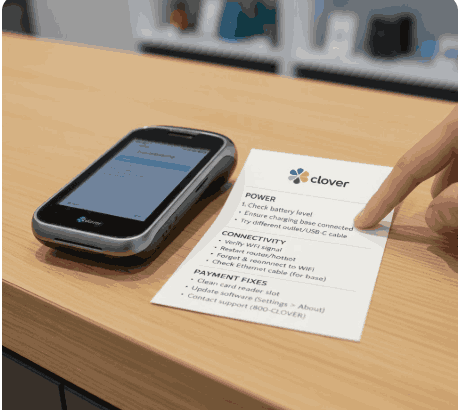
Clover Flex Not Working? Common Issues & Quick Fix Guide
When your Clover Flex Dashboard stops responding, it doesn't just slow you down, but it also affects the flow of clients, sales, and customer experience. Either you use this as a handheld POS device on the floor or as a backup device for the register, downtime adds stress fast.
If you're managing multiple Clover Flex POS devices, the best approach is to troubleshoot in the same order every time: power, connection, software, payments, and peripherals. And if you're setting up an online POS Clover Flex workflow for mobile selling, the same sequence helps you isolate what's failing without guesswork.
Get Started With Us
Fill in your details and we'll get back to you shortly.
What's the Fastest Way to Get Clover Flex Working Again?
Before you change settings, run this quick triage (it solves a lot of "mystery" problems):
- Is it charged and seated properly on the dock/cable?
- Is your internet working on another device (phone/laptop) on the same network?
- Did the device recently update (or fail mid-update)?
- Are payments failing for one method (tap only) or all methods (tap, chip, swipe)?
- Is it just printing that's failing, while payments still work?
If you can answer those 5 questions, you'll usually find the fix in minutes instead of trial-and-error.
Is Your Clover Flex Not Turning on or Not Charging?
Power issues usually fall into three buckets: battery, charger/dock, or a frozen state. Try this order:
- Confirm power source: Use a known-working outlet and cable. If you have a dock, reseat the device firmly.
- Hard restart (safe first step): If the screen is frozen or black but you suspect it's on, a restart often clears it. Wait for it to reboot fully before trying again.
- Let it charge for 10–15 minutes before testing: A deeply drained device may not show immediate screen activity.
If this becomes frequent, treat it like hardware hygiene: make sure to keep the dock clean, avoid loose cable strain, and rotate devices so one isn't constantly running at low battery.
Is it a Network Problem (Wi-Fi or Cellular)?
Flex is a mobile point of sale system, so it's only as stable as the connection behind it. If you're seeing "offline," "can't connect," or slow processing:
- Check the Network: Open a webpage on another device on the same Wi-Fi.
- Toggle Wi-Fi off/on on Flex and reconnect to the correct SSID.
- Move closer to the router or away from interference (thick walls, kitchen equipment).
- Avoid hotspot switching mid-checkout when possible—stability beats speed.
In your business, if movement relies on tableside or aisle use, consider designing your setup like a true portable POS device system—for example, strong Wi-Fi coverage where transactions happen, not just near the counter.
Are Apps Crashing or the System Running Slow?
Performance issues are usually software-related: pending updates, low storage, or a stuck process. Quick fixes that often help:
- Restart the device (clears temporary processes).
- If updates are available, make sure to update the OS and apps.
- Close unused apps if your staff keeps everything open all day.
A good rule: if the device feels slower than normal, treat it like a computer—restart, update, then test again.
Are Card Payments Failing (Chip, Swipe, or Tap-to-Pay)?
Failures in payment can look scary, but most are isolated to one method. Start by looking at the pattern:
If Chip Payments Fail (e.g. with the EMV chip card reader):
- Ask the customer to reinsert slowly and hold steady.
- Inspect the slot for debris (no tools, just a gentle visual check).
- Restart and try a test transaction.
If Swipe / Smart Payments Terminal Fails (debit card reader track-read issue):
- Wipe the card's stripe if it looks dirty.
- Swipe in one smooth motion (not too fast).
If the Tap-to-Pay POS System Fails (contactless payment terminal / NFC payment device):
- Make sure the card/phone is held still in the correct tap zone for a second longer.
- For wallets, confirm the terminal is an Apple Pay–compatible POS and Google Pay–supported terminal in your setup settings (varies by provider).
- Retest the device by restarting.
Whenever tap fails but chip works, it's almost never "everything is broken"—it's usually one contactless setting, interference, or a temporary software hiccup. If failures happen across multiple customers repeatedly, that's when escalation makes sense.
Is the Issue "Declines" or "Processing Errors" During Checkout?
If the device can read cards but transactions fail, you may be dealing with processing-side rules rather than hardware. Practical checks:
- Confirm the device is online and not in a restricted/offline mode.
- Try a small test transaction (if your policy allows).
- Check the date and time on the device—incorrect time can cause verification problems on secure systems.
Card payments often involve secure payment processing and compliance requirements. Avoid repeated failed attempts on the same card. If you see consistent errors, contact your support team rather than guessing, especially if you're running a PCI-compliant payment device environment.
Is Printing Not Working (But Payments are Fine)?
Printing issues are common and usually easy to fix:
- Check paper orientation (thermal paper loads in one correct way).
- Reseat the roll and close the lid firmly.
- Restart and print a test receipt after reconnecting.
If you're using Flex in a busy environment (like a restaurant POS device setup), bumps and quick paper changes cause most "printer not working" moments. Train your staff on correct loading to prevent repeat issues.
When Should You Stop Troubleshooting and Contact Support?
If you've done the basics and still see repeated payment failures across multiple credit card processing machines, the device won't boot after charging or restarting, or software updates repeatedly fail, then it's time to escalate. Clover's official troubleshooting resources for Flex can see account- and device-side flags you can't.
How Can You Prevent Clover Flex Issues in the Future?
A little routine can prevent many problems, especially for small teams running a small business POS system:
- After big updates, restart devices weekly.
- Keep docks and cables tidy and stress-free.
- Train staff on proper tap zone and chip insert technique.
- Don't ignore "update available" prompts for weeks.
This is the difference between a POS that "mostly works" and an all-in-one POS terminal that feels dependable every shift. If you’re worried about the best POS card reader for a small business, then look at the detailed review on this page.
Conclusion
Most Clover Flex problems are fixable quickly once you troubleshoot in the right order: power, network, software, then payments and peripherals. If you manage retail counters or mobile selling, keeping your touchscreen POS device stable is about consistency, repeatable checks, strong connectivity, and simple staff habits.
Not convinced? Check out our detailed comparison of Clover Flex and Clover Mini by our experts.
If your team needs a smoother setup (especially for retail POS hardware workflows or tableside service) reach out to our specialists. We can help you optimize configuration, connectivity, and daily-use best practices so you spend less time troubleshooting and more time selling.