


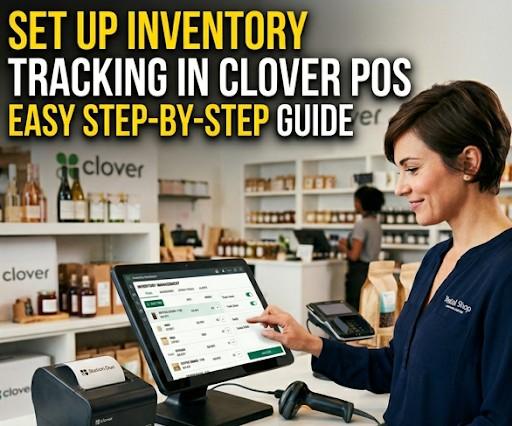
How to Set Up Inventory Tracking in the Clover POS Machine?
If you're using a Clover machine for your business, one of the most valuable features you'll rely on is inventory tracking. It's the core feature that makes your life easy as a shop and business owner. Whether you run a retail store, café, or service-based business, having control over your stock helps you immensely by:
- Avoid Losses
- Improve Efficiency
- Make Smarter Decisions
This guide walks you through the complete setup process in a simple, practical way, no technical background needed. So, follow along and streamline your business for better results.
Get Started With Us
Fill in your details and we'll get back to you shortly.
Why Inventory Tracking is a Core Feature in Clover?
Most shop and business owners think inventory tracking is useful because it helps them monitor their stock. But it does more than that: With Clover, you can:
- Track Items in Real Time
- Avoid Overstocking or Running Out
- Monitor Best-Selling Products
- Simplify Reordering
Once set up properly, Clover can automatically update your stock as sales happen. This directly changes how you handle sales and store management.
Clover Inventory Setup Guide (Step-by-Step)
Got your first Clover, but the setup seems a bit new to you? Don't worry, because you are not the only one with this predicament. Lucky for you, we've put together a simple guide to help you set it up and train your staff effectively.
1. Access Clover Dashboard Inventory Settings
The first thing you need to do is gain access to the Clover dashboard. So, start by logging into your Clover dashboard. Make sure each detail and credential is typed correctly in your browser or on your device.
- Go to Inventory > Items
- This is your main control panel for product and stock management
This is where the Clover POS inventory management setup begins. Once you are logged in, make sure not to share your login credentials with anyone who should not access your business data.
2. Add Items with Stock Count
To set up product inventory in your Clover is extremely easy. All you need to do is click "Add Item." Now, enter the following details:
- Item name
- Price
- Category
- SKU (for tracking)
Now enable stock tracking by adding a quantity. This step ensures that the Clover POS adds items with stock-count functionality.
3. Enable Inventory Tracking
To enable inventory tracking in Clover:
- Toggle "Track Stock."
- Enter initial stock levels
- Save changes
This is the core of Clover's item-tracking configuration, enabling automatic deductions after each sale.
4. Set Up Categories and SKUs
Now is the time to organize your products. Here, you must be wondering, "Why should I take the hassle of setting things up when I can let them be, and the system would track them anyway?"
It makes everything easier for later.
- Create categories like "Beverages," "Accessories," etc.
- Assign SKUs for each product
This helps Clover manage categories and SKUs and improves reporting accuracy.
5. Manage Product Variants and Modifiers
If you sell items with variations (size, color, etc.):
- Use Modifiers or Variants
- Assign separate stock counts if needed
This is essential for Clover to manage product variants and modifiers, especially for clothing or food businesses.
6. Configure Low Stock Alerts
Avoid running out of products by setting alerts. These alerts can help you stay on top of your business restocks and urgent updates. They significantly reduce delays. With alerts enabled, you can restock before popular items run out and keep service smooth.
- Set minimum stock thresholds
- Enable notifications
This completes your Clover low stock alert setup, helping you stay ahead of demand.
Advanced Inventory Features You Should Use
Wondering what more you can do with your new Clover? Here are some features you should try out:
Clover Bulk Inventory Upload CSV
If you have many products:
- Upload a CSV file instead of adding items manually
- Save time and reduce errors
- Perfect for scaling your Clover stock management settings
Clover Barcode Inventory Setup
This feature helps you speed up checkout and track orders in real time with minimal hassle.
- Assign barcodes to items
- Use a scanner for quick sales and stock updates
This is ideal for retail stores with large inventories.
Clover Sync Inventory Across Devices
Clover automatically syncs data across all connected devices. This gives you more control over the business operations.
- Update stock from one device
- See changes reflected everywhere
This makes sure you get smooth Clover sync inventory across devices functionality.
Clover Track Inventory Automatically
If you have set everything up correctly, things will run smoothly from now on. So, once everything seems set:
- Every sale updates stock levels instantly
- No manual tracking needed
This enables Clover to have real-time inventory tracking, reducing human error.
Inventory Reporting and Adjustments
These are some of the new and established features you must explore as a new Clover POS owner.
Clover Inventory Reporting Tools
Clover provides insights like:
- Best-selling items
- Slow-moving stock
- Revenue by product
These reports help you make smarter business decisions.
Clover POS Stock Adjustment Process
Need to fix stock manually?
- Go to item settings
- Adjust quantity
- Add notes (e.g., damaged goods)
This makes sure you get accurate inventory insights at all times.
Common Issues & Fixes
Here is the most common Clover inventory troubleshooting guide:
If something feels off:
- Double-check stock tracking is enabled
- Make sure SKUs are unique
- Verify device sync is active
Most issues come from incomplete setup or syncing delays. So, always be diligent with the setup and put all parameters correctly; this will save you more time than you could ever imagine.
Helpful Resources
To explore deeper features and official support, check the Clover official help guide. These external resources provide detailed documentation and updates.
Final Thoughts
Setting up inventory tracking in Clover isn't complicated, but doing it right makes a huge difference. From adding items to enabling alerts and reports, every step builds toward a smoother, more efficient business operation.
If you're serious about scaling, investing time in proper setup pays off quickly. Need help setting up your Clover system the right way? We help businesses configure, optimize, and scale with Clover, so you can focus on growth, not guesswork.
Get in touch with SoireeInc today, and let's streamline your operations.