


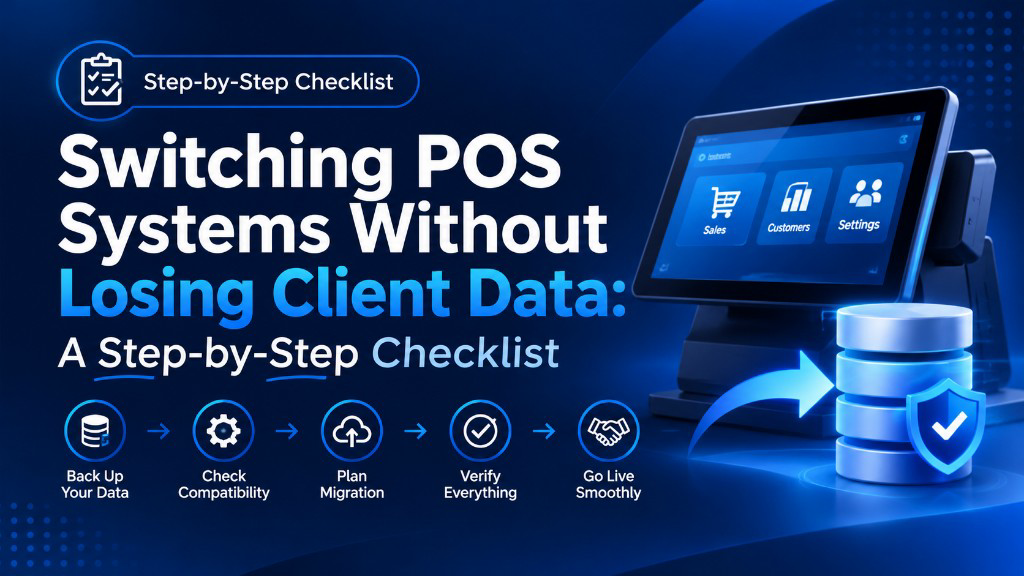
Switching POS Systems Without Losing Client Data: A Step-by-Step Checklist
Your client list is the most valuable thing in your salon. It holds years of shade preferences, allergy notes, birthdays, and booked appointments, and you can't easily rebuild any of it.
That's why so many owners stay stuck with a slow, overpriced system. They're afraid that switching means starting from zero.
It doesn't. With the right plan, moving to a new nail salon POS can be smooth, safe, and done in a few weeks. This checklist from Soireeinc walks you through every step, from the first export to your first full day on the new system.
Why Does Switching a Nail Salon POS Feel So Risky?
Most owners don't fear the new system. They fear what might go missing on the way there.
Your Client History Lives in One Place
Every gel formula, nail shape, and sensitive cuticles note sits inside your current POS. If it doesn't come across, your technicians lose the details that keep regulars coming back.
Losing Clients Costs More Than Finding New Ones
Harvard Business Review notes that acquiring a new customer can cost 5 to 25 times more than keeping an existing one. A messy migration that loses client contact details can wipe out years of marketing work.
The Money at Stake Adds Up Fast
Here's a simple example. Say your salon has 2,400 client profiles and loses 10% of them in a bad switch.
If each of those 240 regulars spends $50 per visit and comes in 10 times a year, that's $120,000 in yearly revenue at risk.
Old Providers Don't Always Make It Easy
Some providers limit what you can export. Others cut off your data access the day you cancel. If you don't plan around this, you can lose data you've already paid to collect.
Booked Appointments Can Fall Through the Cracks
Future bookings are the easiest thing to lose and the most painful. A client who arrives for an appointment that no longer exists in your system rarely gives you a second chance.
What Client Data Should You Move When Switching POS Systems?
Not everything needs to move, but the most important data must move perfectly. Sorting it into three groups keeps the job manageable.
| Priority | Data Type | Why It Matters |
|---|---|---|
| Must move | Client names, phone numbers, emails | Your ability to contact and rebook clients |
| Must move | Future appointments and deposits | Prevents no-shows and double bookings |
| Must move | Gift card and prepaid package balances | These are money you owe clients |
| Must move | Service menu, prices, and add-ons | Keeps checkout accurate from day one |
| Should move | Service history, formulas, and technician notes | Keeps service personal and consistent |
| Should move | Loyalty points and membership status | Protects client trust and repeat visits |
| Should move | Technician profiles, commission rates, tip rules | Keeps payroll accurate |
| Archive | Past sales, tip, and tax reports | Needed for taxes and audits |
| Archive | Old inventory and vendor records | Useful reference, rarely needed day to day |
Salon Data That Generic Guides Miss
Most POS migration checklists are written for restaurants and retail stores. Nail salons have extra data that needs special care:
- Shade and formula notes: The exact gel color, brand, and finish each client prefers
- Allergy and sensitivity notes: Reactions to acrylic, adhesives, or certain products
- Before-and-after photos: Often stored separately from client profiles
- Technician preferences: Which clients always book with the same tech
- Text reminder consent: A record of which clients agreed to receive SMS messages
- Split tickets and shared tips: History of services split between two technicians
What Usually Can't Move
Saved card numbers usually can't be exported as plain data, because payment security rules don't allow it. In most cases, cards on file are stored as secure tokens tied to your old processor.
Ask both providers early whether a token transfer is possible. If it isn't, plan for clients to re-enter their cards at their next visit.
The Step-by-Step POS Migration Checklist
Follow these phases in order. Skipping ahead is how data gets lost.
Phase 1: Before You Tell Your Old Provider Anything
- Pull out your contract and read the boring parts.
You're looking for four things: the notice period, the auto-renewal date, any early termination fee, and what happens to leased hardware. Write those dates on the calendar at the front desk, not on a sticky note that disappears. - Find out what happens to your data when you leave.
This one surprises people. Some providers keep your account open for 30 days after you cancel. Others shut it off that same day, and your client list goes with it. If the contract doesn't say, call support and ask. Get the answer in an email. - Make your can't-lose-this list.
Go back to the table above and check each item against your current system. Can you export it fully, only partly, or not at all? The not at all items are the ones to ask about now, while your provider still wants to keep you happy. - Write down everything plugged into your POS.
Your booking link on Instagram. QuickBooks. Payroll. Text reminders. Your Google review requests. It's easy to forget one, and then three weeks later you notice nobody has gotten a reminder text since the switch.
Phase 2: Export Everything (Then Export It Again)
- Download every report your system will give you.
Client list, appointment history, future bookings, gift card balances, sales reports, tip reports. Most systems export to CSV or Excel. If there's an export all button, use it, even for things you think you won't need. - Store two copies in two different places.
One on a secure drive at the salon, one in password-protected cloud storage. Put the date in the file name, likeclients_export_2026-11-06.csv. You'll thank yourself if you ever need to tell two versions apart. - Hold on to your money records.
This part isn't about the new system. It's about taxes. The IRS says to keep most business tax records for at least 3 years, and employment tax records (tip and payroll reports count here) for at least 4. - Take screenshots of your settings.
Tax rates, commission splits, discount codes, how far ahead clients can book. Nobody remembers these exactly, and most systems won't export them.
Phase 3: Clean It Up Before You Move It
- Hunt down duplicate clients.
Every salon has them. Jen, Jennifer, and Jenny might all be the same person, with three different phone numbers. Merging them now takes an afternoon. Merging them after the import can take weeks. - Fix what's broken.
Scroll through for blank phone numbers, emails missing the @, and service prices from two years ago. Bad data doesn't fix itself when it moves. It just moves. - Match your old columns to the new fields.
Your old system might keep everything in one Notes box, while your new POS system nail salon software splits it into preferences, allergies, and formulas. Decide where each piece goes before you import, not halfway through. - Try 30 clients before you try 3,000.
Do a small test import first. Open each profile and check its phone number, last visit, shade notes, all of it. If something looks off, fix the file and try again. That's much easier with 30 profiles than with the whole list.
Phase 4: Build the New System
- Set up your service menu first.
Everything else depends on it. Add each service with its price and time, and don't forget the small stuff, like gel removal, French tips, and nail art tiers. Those are the add-ons that slip through when they're not on the screen. - Add your technicians.
Each tech needs a login, working hours, a commission rate, and tip rules. If two techs ever share a client, test a split ticket now, before a real client is standing at the counter. - Move your future appointments, then check them by hand.
Import every booking and deposit. Then sit down with the next two weeks of appointments and compare old and new side by side. A booking that went missing means a client walks in expecting a seat that isn't there. - Load gift cards and prepaid packages.
Match every balance to the penny. A client who bought a $100 gift card for her mom does not want to hear that it now shows $0. - Reconnect your tools at clean breaks.
Switch accounting on the first of the month and payroll at the start of a pay period. Your books will thank you at tax time.
Phase 5: Practice Before It Counts
- Train on what actually happens at your front desk.
Skip the feature tour. Instead, have your team run through a walk-in check-in, a split ticket between two techs, a card tip, a refund, and a rebooking. Do each one until nobody has to think about it. - Run both systems side by side for 1 to 2 weeks.
Ring up real clients on the new system. Keep the old one open in read-only mode so you can look things up. Every night, compare the totals. If they don't match, find out why before you close the old account. - Pick 10 regulars a day and look them up.
Choose the clients you know best, so you'll spot it right away if something's wrong. Is the shade note there? The allergy warning? The package balance? It takes about five minutes a day.
Phase 6: Go Live, Then Close the Door Behind You
- Go live on a quiet morning.
A Monday or Tuesday is usually best. Never a Saturday, and never the week before Mother's Day or the holidays. - Match your numbers every day for the first month.
POS sales, processor deposits, bank deposits. After a few weeks of them matching, you'll stop worrying. That's when you can start checking weekly instead. - Cancel in writing and keep proof.
Send your cancellation before the notice deadline. Return any leased hardware with tracking. Save the confirmation email somewhere you'll find it again. - Grab one last export before you lose access.
It's insurance. Odds are you'll never open it, but if a client disputes a gift card balance six months from now, you'll be glad you have it.
How Long Does a POS Switch Take for a Nail Salon?
Most single-location salons can switch in about three to five weeks. Here's a realistic timeline:
| Week | What Happens |
|---|---|
| Week 1 | Review your contract, list your data, and choose your new provider |
| Week 2 | Export, back up, and clean your data |
| Week 3 | Set up the new system, test the import, and train your team |
| Weeks 4–5 | Run both systems in parallel, go live, and close out the old account |
Multi-location salons usually need more time. It's smart to switch one location first, fix any issues, then roll out to the rest.
How Do You Keep Client Data Safe During the Switch?
Export files hold names, phone numbers, and sometimes sensitive notes. They need the same care as your cash drawer.
- Limit who handles the files: Only the owner or one trusted manager should download and store exports.
- Never email client lists: Use secure file sharing with a password instead.
- Don't store card numbers anywhere: The PCI Security Standards Council's small merchant guide is clear that if you don't need card data, you shouldn't keep it.
- Delete extra copies when you're done: Once your new system is verified, securely delete working files you no longer need.
- Treat health notes with extra care: Allergy and sensitivity details should only be visible to staff who need them.
What If Something Goes Wrong?
Even a careful switch can hit a snag. A simple backup plan keeps one bad day from turning into a bad month.
Keep the Old System Read-Only
Don't close your old account until you've run the new system for at least two weeks. If something is missing, you can still look it up.
Keep a Paper Backup for Day One
Print your appointment book for the first two days of go-live. If the system has a hiccup, your front desk can still greet clients by name.
Know Who to Call
Before go-live, confirm your new provider's support hours. A 9 to 5 help line won't help you at 6 p.m. on your first Saturday.
Common Mistakes Salon Owners Make When Switching
- Cancelling before exporting: Always pull your data first, then give notice.
- Importing rough data: Duplicates and old phone numbers follow you into the new system.
- Forgetting gift cards: Unhonored balances are one of the fastest ways to lose client trust.
- Going live on a Saturday: Your busiest day is the worst day to learn a new screen.
- Skipping staff training: A great system run by a confused team still slows down checkout.
- Not telling clients: A quick text explaining new booking links or receipts prevents confusion.
Why Nail Salons Switch to Soireeinc
Soireeinc builds POS setups around how nail salons really work, with walk-in queues, chairside payments, automatic tip splits, and client profiles that keep every note in one place.
Here's what you get when you switch with us:
- Salon-ready setup: We load your services, prices, technicians, and tip rules before your first day.
- $0 upfront hardware options: Get started on Clover, PAX, or NRS devices without a big upfront cost.
- Fast remote setup: Most setups are done remotely in under two hours.
- 24/7 US-based support: Real people answer when you need help, including busy weekends.
- 12+ years of experience: We've helped US businesses of every size move to better systems.
Explore our nail salon POS system features, or browse our Clover POS devices to find the right fit for your stations.
Your Clients Stay. Only the Slow System Goes.
You've spent years building your client list, so don't let an outdated POS hold it hostage. A planned switch keeps every profile, booking, and balance right where it belongs.
Tell us your station count, your current system, and what's frustrating you. We'll map out your move and show you your full monthly cost before you commit.
Get your free nail salon POS quote today
Get Started With Us
Fill in your details and we'll get back to you shortly.