


What to Do When a Customer's Card Is Charged but No Receipt Prints
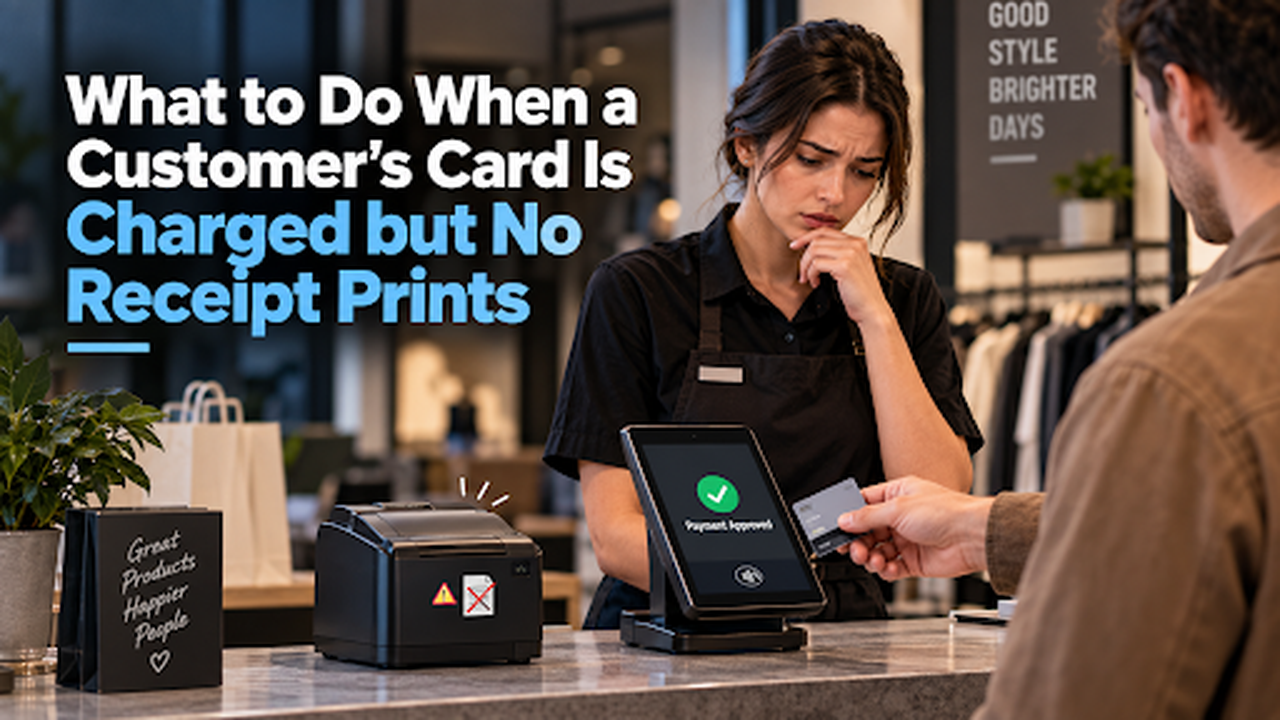
It is a busy Friday evening; a customer buys a jacket and taps their card. Your POS shows an approval, but the receipt printer stays silent. No paper. Nothing. You look at the cashier, and the cashier looks at the printer. Awkward silence.
You are not sure if the payment actually went through. Should you charge the customer again? Should you let him go? What if the card charged but no receipt? This situation is more common than you think, and it is completely fixable. Your POS peripherals, like the receipt printer, can fail on their own without affecting the payment. In this guide, you will learn how to confirm the payment, find the transaction, and solve the printer issue step by step.
Get Started With Us
Fill in your details and we'll get back to you shortly.
Why Does This Happen? Understanding the Gap Between Payment and Printing
A payment approved but receipt not printed scenario confuses almost every cashier. But the reason is simple. Payment processing and receipt printing are two completely separate functions. One failing does not mean the other failed too. Here is the gap you need to know.
How Payment Processing Works
- Your customer taps, inserts, or swipes their card at the payment terminal.
- Card data gets encrypted and sent to the payment gateway instantly.
- Your payment processor contacts the customer's bank for approval.
- The bank runs a fraud check, verifies the balance, and sends back an approval code.
- Your POS system receives that approval and records the transaction right away.
How Receipt Printing Works
- Once the payment is approved, the software sends a print command to the receipt printer.
- The printer receives that command through a USB, Ethernet, or Bluetooth connection.
- Thermal technology burns the transaction details directly onto heat-sensitive paper.
- The receipt includes the transaction amount, approval code, and payment method.
- Any break in the connection between the POS software and printer stops the receipt from printing.
Why One Fails Without the Other
Payment processing runs through your payment gateway and bank network. Receipt printing runs through a separate hardware connection. Both work when you tap the card, but neither one controls the other. So a POS payment successful but no receipt situation makes total sense. The bank already approved the transaction. But if the printer has a loose cable, an empty paper roll, or a software glitch, it simply does not respond. The printer may have failed after payment authorization, but check the transaction status before confirming the sale to the customer.
What to Do When a Customer's Card Is Charged but No Receipt Prints
When a card is charged but no receipt prints, stay calm first. The payment is most likely safe. What you need now is a clear action plan. Below are the simple steps to follow to handle this situation without any confusion.
Step 1: Confirm the Payment Actually Went Through
Before doing anything else, open your POS transaction history and look for the sale. Most systems show each transaction with a clear status such as Approved, Pending, or Declined. If you see an approval code next to the transaction, the payment went through successfully. You can also log into your payment dashboard to check if the card payment was approved. The transaction amount, card details, and approval code will all be visible there. If the status shows pending, the charge has not fully processed yet.
Step 2: Find the Transaction in Your POS History
Even when a customer is charged but the receipt printer fails, the transaction record stays safe inside your POS system. Go to your transaction history and filter by today's date. Most POS systems let you search by the last four digits of the card, transaction amount, or time of sale. Find the matching record and open it. You will see the approval code, card details, and exact amount right there. That record is your proof that the sale went through successfully.
Step 3: Do Not Retry the Payment
This is the most important step. Do not run the card again until you have checked its status in the POS or processor dashboard. If the status is unclear, contact payment support. If you run it again, it creates a duplicate charge on your customer's account. That leads to a chargeback. Staff often retry because it doesn't print a receipt, but that doesn't mean it was a failed payment. Always check your transaction history. If the sale is there with an approval code, the money is already collected.
Step 4: Reprint the Receipt from POS
Most systems let you reprint a POS receipt directly from your transaction history. Open your POS, go to the history, and locate the sale by date, amount, or the last four digits of the card. Once you find it, select the transaction and look for the reprint option. One tap and the receipt prints again. Your customer gets their proof of purchase, and the situation is resolved with ease.
Step 5: Send a Digital Receipt Instead
If the printer refuses to cooperate, a digital receipt solves the problem. Most modern POS systems let you send a receipt directly to the customer's email or phone number right from the transaction screen. Just ask the customer for their email or mobile number. Enter it into the POS and hit send. The receipt lands in their inbox or messages within seconds. It carries the same transaction details and purchase information as a printed one.
Step 6: Proof of Payment Without a Printed Receipt
Not having a printed receipt does not mean you lack proof of card payment. Your system records every transaction with a unique approval code issued directly by the customer's bank. Share that transaction ID and approval code with your customer. Offer a POS generated receipt or transaction confirmation when available. Keep the transaction ID for support and reconciliation, and follow your payment provider's process for disputes or returns.
Step 7: Troubleshoot the Printer
All POS peripheral devices depend on a stable connection to your POS system. When that connection breaks, the printer goes silent even if the payment went through. Most failures are due to:
Common Causes
- A POS printer connection issue over USB, Bluetooth, or LAN cuts communication between the printer and your system.
- The paper roll ran out or was loaded backward.
- A paper jam inside the printer completely blocks the feed.
- An outdated or corrupted printer driver stops the print command from going through.
Quick Fixes
- Check all cables and firmly reseat the USB, Ethernet, or Bluetooth connection.
- Open the printer cover, remove the paper roll, and reload it with the thermal side facing down.
- Turn off the printer, wait 10 seconds, then turn it back on to reset the connection.
- Visit your printer manufacturer's website, download the latest printer driver, and install it.
Conclusion
An approved payment with no receipt is confusing. But you now have every step to handle it confidently. Verify the transaction, skip the retry to avoid duplicate card charges, and reprint or send a digital receipt instead. If the printer keeps acting up, check the cable, reload the paper, or update the driver. The fix is always simpler than the panic. Ready to stop printer problems before they start? Visit Soiree Inc, for reliable POS hardware that keeps your checkout running smoothly.